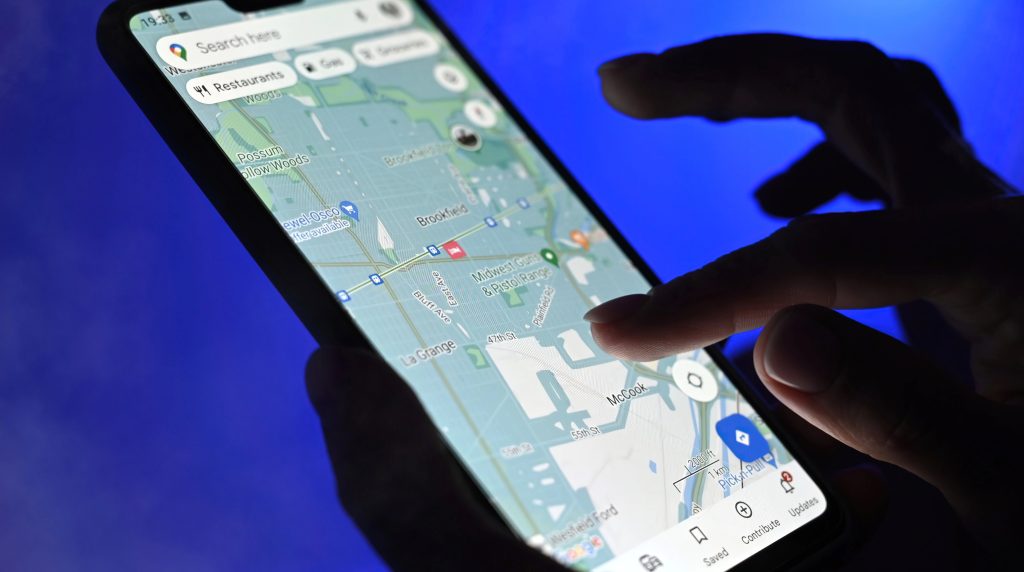
The more you use live navigation, the more travel data you consume. The secret is to download as much of Google Maps as you can before flying, and save live data for when you need it most. Do it right, and a week of travel abroad will consume only a couple of hundred megabytes.
How Much Data Google Maps Actually Uses
Photo Credit: Deposit Photos.
Google Maps consumes about 3 to 5 MB per hour with live navigation on, depending on the frequency of rerouting. It consumes less if you stay within the same neighborhood. Satellite view switches to 15 to 20MB per hour. It might not seem like a lot, but a week of driving, searching for information, taking photos in places, and looking at Street View previews can quickly add up to 1 GB.
Throw in all the other stuff you do on your phone, including messaging and taking photos and videos, and the lowest international phone plan might not seem like enough. Americans took more than 11 million outbound trips in June 2025 alone, so even small per-trip savings on data add up fast. The map is a good place to start cutting.
Offline Map Caching: The Trick Most Travelers Miss
Photo Credit: Deposit Photos.
Many travelers are unaware that Google Maps allows you to download entire regions even before you leave the country. Open the App, click on your profile, select Offline maps, and select your region. The app saves the street, business, and walking/driving directions so that they operate without a signal. The default download is big enough to cover an entire city, and you can save several cities during a single trip.
After you download the app, navigation is basically the same as being online. You get turn-by-turn voice directions, business hours, and search options inside the saved area. The app refreshes the data automatically when you’re on Wi-Fi, and downloads expire after 30 days if they aren’t updated. The only things that need connectivity are live traffic, public transit, and Street View.
Data-Lite Navigation Settings
Photo Credit: Deposit Photos.
A few settings inside Google Maps trim usage even further. Turn on Wi-Fi only mode under Settings, then Navigation settings, and Maps will only fetch live updates when you’re on Wi-Fi. Turn off auto-play previews of businesses and ratings, which show thumbnails in the background while scrolling. It’s better to avoid using satellite view unless you really need to see a picture of the location.
The Data Saver mode (found in your network settings) on Android prevents apps from downloading data when you’re not using them. On iPhone, you have the same option under Settings, then Cellular, then Cellular Data Options, then Low Data Mode.
When Live Data Is Worth It
Photo Credit: Deposit Photos.
Offline maps, even though convenient, are not the solution to everything. You still need to rely on live data when traveling for several reasons.
First, consider real-time traffic. In any busy city, checking the map before you head out can save you 20 minutes of detour, and that’s worth a few kilobytes. Second, you need to keep up with public transit. Bus and metro schedules aren’t part of the offline download, so you might miss the right train because your app is showing yesterday’s timetable. It’s a common mistake that can ruin your entire day of planning and sightseeing. Third, a fresh search. The cached maps already know the streets, but new restaurants, opening hours, and reviews need a live connection.
Google continues to release updates to Maps in 2026, such as AI-powered search for destinations and immersive navigation, which are only available online. Good practice is to download what doesn’t change (stores, neighborhoods, walking routes) and spend data on what does (traffic, transit, fresh search).
Picking an eSIM That Carries the Navigation Well
Photo Credit: Deposit Photos.
Know that 3G handles Google Maps well, since some regional markets still fall back to 3G even as local carriers move spectrum to 4G and 5G. This is the way spectrum licensing and international roaming standards work, and it’s not specific to any service provider. Travel eSIM adoption has jumped sharply through 2025, as they become the perfect solution for travel navigation, messaging, and light work on the go.
For example, if you’re heading to South America, know that an eSIM for Brazil plan from Saily installs in a few minutes through the app before you leave. People using regional Saily plans in major cities around Europe and North America report reliable download speeds for streaming, navigation, and remote work. Saily’s built-in security capabilities also allow you to travel without adding a VPN and an ad-blocking app to ensure safe browsing on hotel and airport Wi-Fi connections.
Local SIMs and travel eSIMs are both unique products with different benefits. If you’re in a country for a longer period, you’ll appreciate having a local SIM that can get you directly connected to a local carrier. A travel eSIM is ideal for all other scenarios: not needing to visit a store to activate your SIM, knowing exactly how much you’ll spend on data before you travel, and built-in security measures that most regular local prepaid SIMs don’t offer.
Practical Setup for Any Trip
Photo Credit: Deposit Photos.
Google Maps was built to be efficient. International data plans were not. Pairing offline maps with a few smart settings turns one of the most useful apps on your phone into one of the lightest in terms of data. Pick an eSIM that switches on the moment you land and handles the live parts well, and a 1 GB plan starts feeling like 5.
And don’t stress over every megabyte, because you’ll be using it wisely. Once you get off the plane, walk through customs, turn off airplane mode, and you’ll notice that your navigation is already working. The map did most of its job before you even boarded.